Photo Resolution Explained: What Changes When You Print Big
This guide explains photo resolution in plain English. It shows why a bigger print changes it, and how to check a file before you print. Read it before you order a large print.
If a photo is too small or soft, the Image Upscale style in Voymage can help. You will find the steps near the end.
What Photo Resolution Means
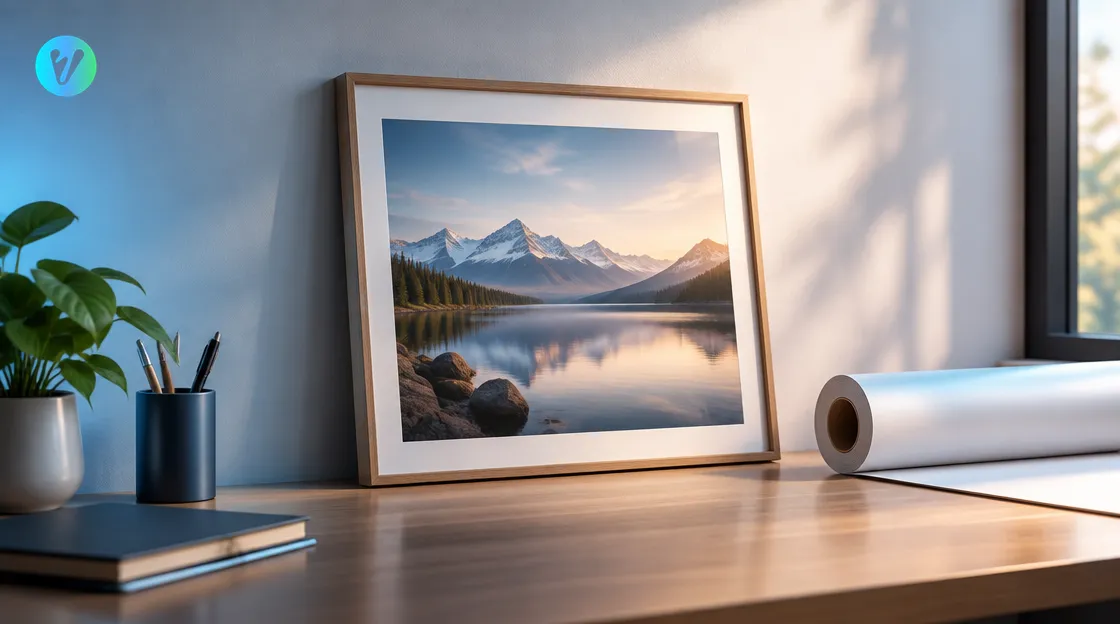
A digital photo is a grid of tiny squares called pixels. Resolution describes how many of those pixels fit into each inch of the picture. A university library guide says input resolution is measured in pixels per inch, or ppi, which it calls the density of pixels of the image.
When you judge a photo, look at fine detail such as eyelashes, fabric and small text. Zoom in on those areas first.
Try thinking of pixels as the tiles in a mosaic. Each tile is one tiny square on the grid. Resolution tells you how many tiles fit into each inch.
Try zooming in on a screen. Look for sharp edges and clear detail.
The guide gives a small example. It says a 100x100 ppi image printed at 1 inch would have 100 pixels per inch. Keep that example in mind when you choose a print size.
Why a Bigger Print Lowers Photo Resolution
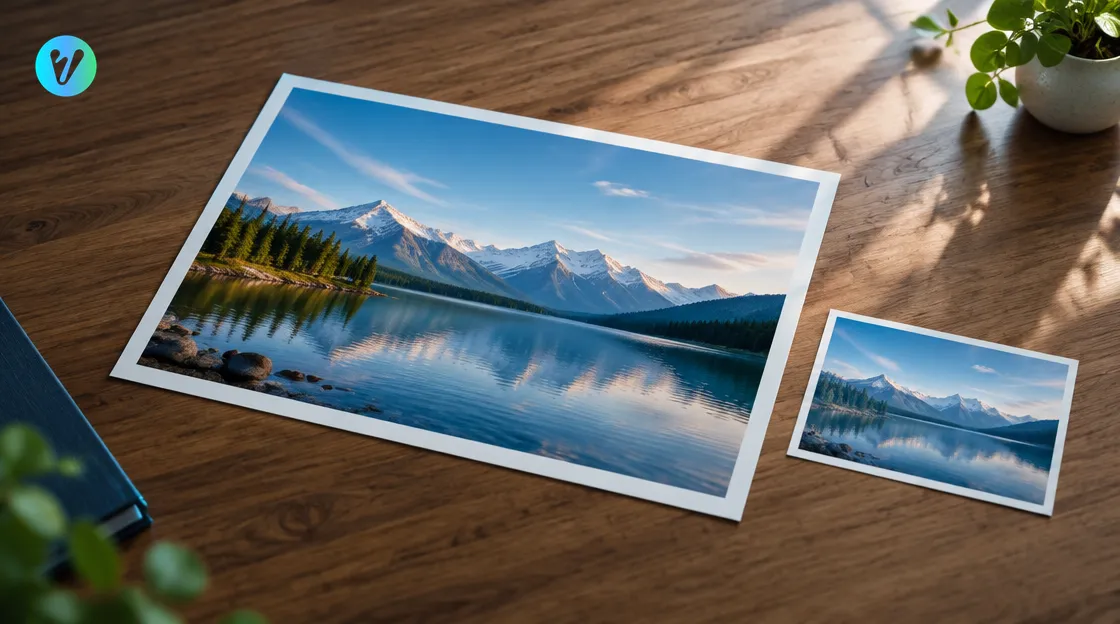
The same file does not keep the same resolution at every size. The guide explains that if you print the same image in a larger format, the ppi goes down, and your resolution is lower. Print it in a smaller format and the ppi goes up.
| Print size | Pixels per inch | Resolution |
|---|---|---|
| Smaller print | Higher | Higher |
| Larger print | Lower | Lower |
In other words, the same file gives a lower ppi when you print it larger. Check your photo at the size you plan to print.
Choose your print size first. Then check the file against that size before you order.
How to Check Your Photo Before You Print
Try these steps for a quick check. Do them in order, and stop if you spot a problem.
- Zoom in. Open the photo on a computer and zoom to full size. Look at faces, text and edges.
- Look for blocks. If edges look blocky or smudged, look for a larger original.
- Compare sizes. Check the pixel size in the file details, then compare it with the print size you want.
- Start from the original. Use the first file you have, not a screenshot or a copy that was resized earlier.
- Print a small test. Do this before you commit to a big print.
Think about where the print will hang and how close people will stand. Use that to decide how much detail you need. Stand back from a test print to see how it looks from that distance.
Write down what you find. If the photo looks soft at full size, look for a larger original before you spend money on a print. Keep a short list of file names and pixel sizes, so you can compare photos quickly.
Pixels Per Inch Versus Dots Per Inch
You may also meet the term dpi. The same guide describes output resolution as dots per inch. It calls this a measure of how many dots the printer can print per inch, or the monitor can display, horizontally and vertically.
In short, ppi describes the image, and dpi describes the device that prints or shows it. Try comparing your file size with the print size you want.
When you order a print, ask the print shop what file size they recommend for the print size you want. Then compare that advice with the size of your file. Write the answer down next to the file name.
What an Upscaler Is For
The Image Upscale page says it enhances photo quality in seconds by boosting resolution, sharpness and detail. It lists three uses: restoring old photos, enhancing screenshots and preparing images for print.
Start with the clearest version of the photo you can find. Then use the style to improve the file before you print. Using it takes three steps.
- Upload your photo. Drag and drop an image, or choose one from your device. You can also pick a style first to preview how your photo will transform.
- Choose the format. Pick a format before you generate.
- Generate and download. Your finished image is ready in seconds.
When your finished image is ready, open it at full size and compare it with the original. Look at the same face or the same edge in both.
Keep both files. The original stays as your safe copy, and the improved file is the one you send to print. Put them in separate folders with clear names.
Common Mistakes to Avoid
- Enlarging a tiny thumbnail. Start from a bigger file instead.
- Using a screenshot of a screenshot. Go back to the original file instead.
- Saving a compressed file again and again. Keep one clean original and work on copies.
- Judging only on a small screen. Zoom in before you decide.
- Skipping the test print. Print one small test first.
- Mixing up ppi and dpi. Remember that ppi belongs to the image, and dpi to the printer or screen.
- Trusting luck. Check these habits before you order, and keep your original file safe.
Looking for other tools? See the AI photo tools page for more ways to improve a photo.
Conclusion
Photo resolution is about pixels per inch, and a bigger print lowers it. Check your file by zooming in, start from the original and print a small test. When a photo needs more detail, open the Image Upscale style, upload your picture and choose a format.
Voymage is also available as an app. Get Voymage on Google Play.
Frequently asked questions
What is photo resolution?
It describes how many pixels fit into each inch of a picture. A university library guide measures it in pixels per inch, or ppi.
Why does a bigger print lower photo resolution?
The guide says printing the same image in a larger format makes the ppi go down. Printing it in a smaller format makes the ppi go up.
How can I check a photo before printing?
Zoom in to full size and look at faces, text and edges. Compare the pixel size with your print size, and print a small test first.
What is Voymage Image Upscale used for?
The page lists restoring old photos, enhancing screenshots and preparing images for print. It says it boosts resolution, sharpness and detail in seconds.
How do I use the Image Upscale style?
Upload your photo, choose the format, then generate and download. Compare your finished image with the original at full size.
What file should I start from?
Use the clearest original you have, not a screenshot or a copy that was resized before.