Colorize Old Photos: A Gentle Guide for Family Prints
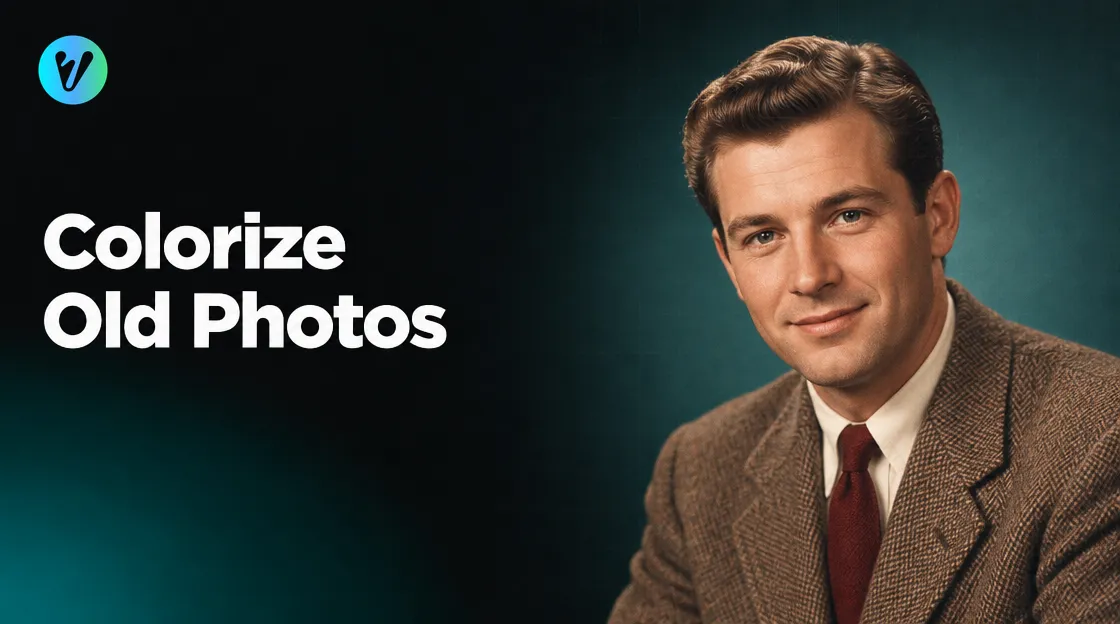
Do you want to colorize old photos from your family albums? Try it on one favourite photo and see it in colour. Protect the original print first, then work on a digital copy.
When your copy is ready, the colorize black and white image style in Voymage can add colour to it. The steps are below.
Handle the Original Print With Care
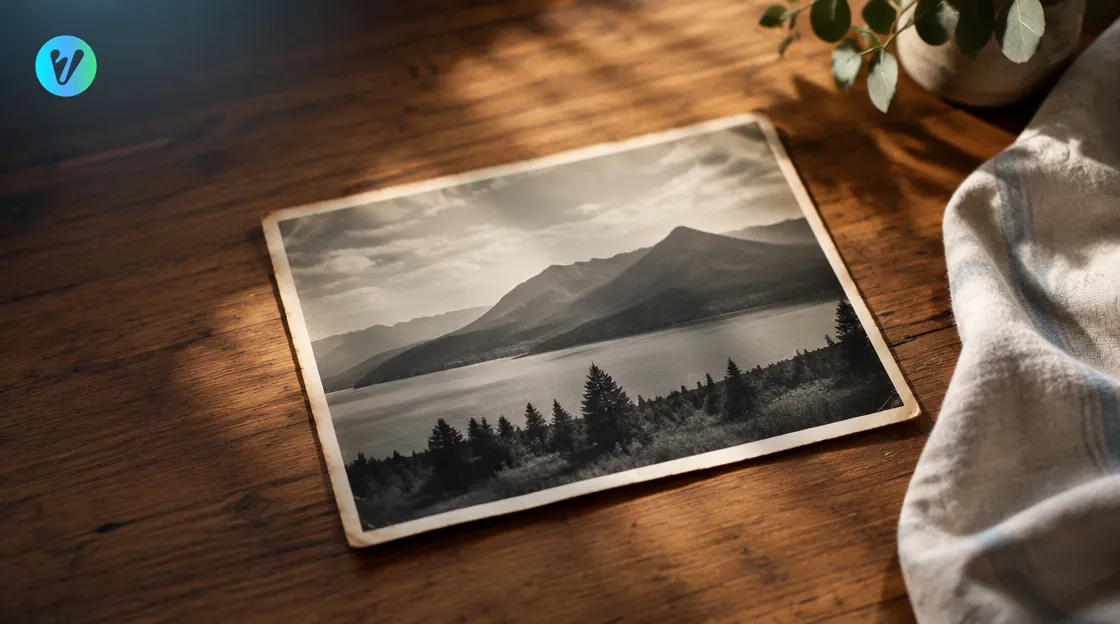
Before you scan anything, look after the paper. A national library's guide to caring for photographs says to avoid touching the image area of a photograph. So hold each print by its edges and lift it gently.
The same guide says a good storage environment is arguably the most important preservation measure for photographic materials. It calls relative humidity the single most important factor in preserving most photographic prints. Store old prints somewhere stable, away from damp rooms and heat.
These tips are for the paper print itself. Once you have a digital copy, leave the original safely in its place. Clear a clean, flat table before you handle it, and wash and dry your hands first.
Choose a quiet time for this project. Try asking a relative to sit beside you and share the stories.
Make a Digital Copy Before You Colorize Old Photos
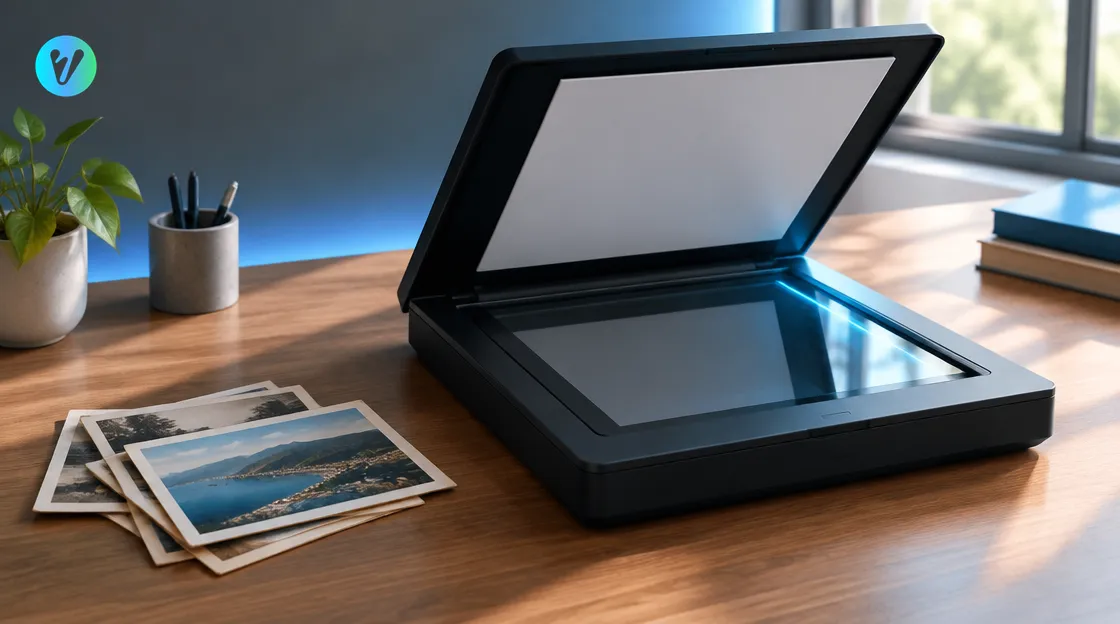
Scan the print, or take a flat photo of it in even light. Put it on a plain surface near a window. Hold your phone straight above it, so the edges of the print stay straight. Avoid flash and lamp glare, and try a second scan if the first one looks dull or tilted.
Now look at the copy on a screen. Is the face sharp? Are there creases or marks? If the copy looks small or soft, Voymage also has an image upscale page that you can try first.
Name the file clearly, for example with the person and the place. Keep this scan unchanged. Use short, clear names. Make your colour copies from it, and keep the first scan clean.
Get the Scan Ready Before You Upload
Try a few quick fixes before you upload. Crop away the scanner edge or the table around the print. Straighten the picture so the horizon is level. If you see a bright patch from glare, scan the print again at a slightly different angle.
Write down what you know about the photo while you are at it. Add the names, the place and the year, if you remember them. Save these notes next to the file, where the next person who opens the folder can find them. Try adding a line about who is in the picture.
Do a final check before you upload. Zoom in on the face and the edges. If a scratch or crease is very visible, scan again with the print lying flatter.
How to Colorize Old Photos With Voymage
The style page says the tool automatically restores colour to black and white photos. It describes realistic, vibrant shades that keep the original feel of the photograph intact. It also says colour is added with one click, and that details are enhanced while the colours blend with the original photo. Using it takes three steps.
- Upload your photo. Drag and drop an image, or choose one from your device. You can also pick a style first to preview how your photo will transform.
- Choose the format. Pick a format before you generate.
- Generate and download. Your finished image is ready in seconds.
Check the Colours Against Your Memory
Try to treat AI colour as a guess, not a record of what the photographer saw. Look at your finished image with that in mind.
Skin and hair
Ask whether the tones look natural for the person you know. Look at the face first.
Sky, grass and clothes
Ask relatives what they remember. Ask about a dress, a car or a front door. Use their memory as a check.
Compare two different scans
If you have two scans of the same moment, compare the two colour images side by side. Keep the one that feels closest to the family story. Work in small steps: try one scan, check it, then move on to the next.
Save and Share Your Colour Copy
Try these file habits to protect your work. Back up the folder in a second place, such as an external drive. Keep one extra copy of every scan.
Keep the black and white scan and the colour copy together in one folder. Use clear names, such as the person, the place and the word colour. Try adding the date too.
Take a short break before you decide. Look at the colour copy again the next day, when your eyes are fresh. Check the details again before you share the picture.
When you share your finished image, add a short note that the colours were added by AI. Try telling family how it was made. Ask them what they see, and write down any details they remember. Note the date you make the colour copy, so family can see which copy came first.
Common Mistakes to Avoid
- Touching the image area. Hold prints by the edges.
- Working on the only copy. Always keep a clean scan of the original.
- Judging colours on a dim screen. Check your finished image in good light.
- Expecting a perfect match. Treat the colours as a guide, not a fact.
- Sharing without a note. Say that the colours were added by AI.
Want to try another look on a different photo? Browse the everyday styles page.
Conclusion
To colorize old photos well, protect the print, make a clean digital copy and check the colours with the people who remember. Then open the colorize black and white image style, upload your scan and choose a format.
Take your time. Give each photo a careful look before you decide, and save your favourite colour copy in a second place.
Voymage is also available as an app. Get Voymage on Google Play.
Frequently asked questions
How do I colorize old photos?
Scan or photograph the print, upload the copy, choose the format, then generate and download. Voymage's colorize style adds colour in seconds.
How should I handle an old print?
Avoid touching the image area and hold the print by its edges. A national library guide also stresses good storage for photographic prints.
Should I work on the original print?
No. Make a digital copy, keep the original in a stable place and work only on the copy.
Are the colours accurate?
Treat them as an AI interpretation. Compare them with what relatives remember about clothes, cars and places.
What does the colorize style do?
The page says it automatically restores colour to black and white photos and keeps the original feel of the photograph intact.
How do I share a colourised photo?
Save it next to the black and white scan and add a short note that the colours were added by AI.